How to Animate a Photo With AI: Which Kind of Tool to Use
Turning a photo into a video depends on the motion you want. Compare prompt-based image to video AI, face animation and dance tools, and when each one fits.
To animate a photo with AI, upload it to a tool that turns images into video, then tell it how to move, either by writing a prompt or by picking a preset. The harder part is choosing the tool, because "make this photo move" can mean three quite different things.
Start with the motion you want, not with a list of apps.
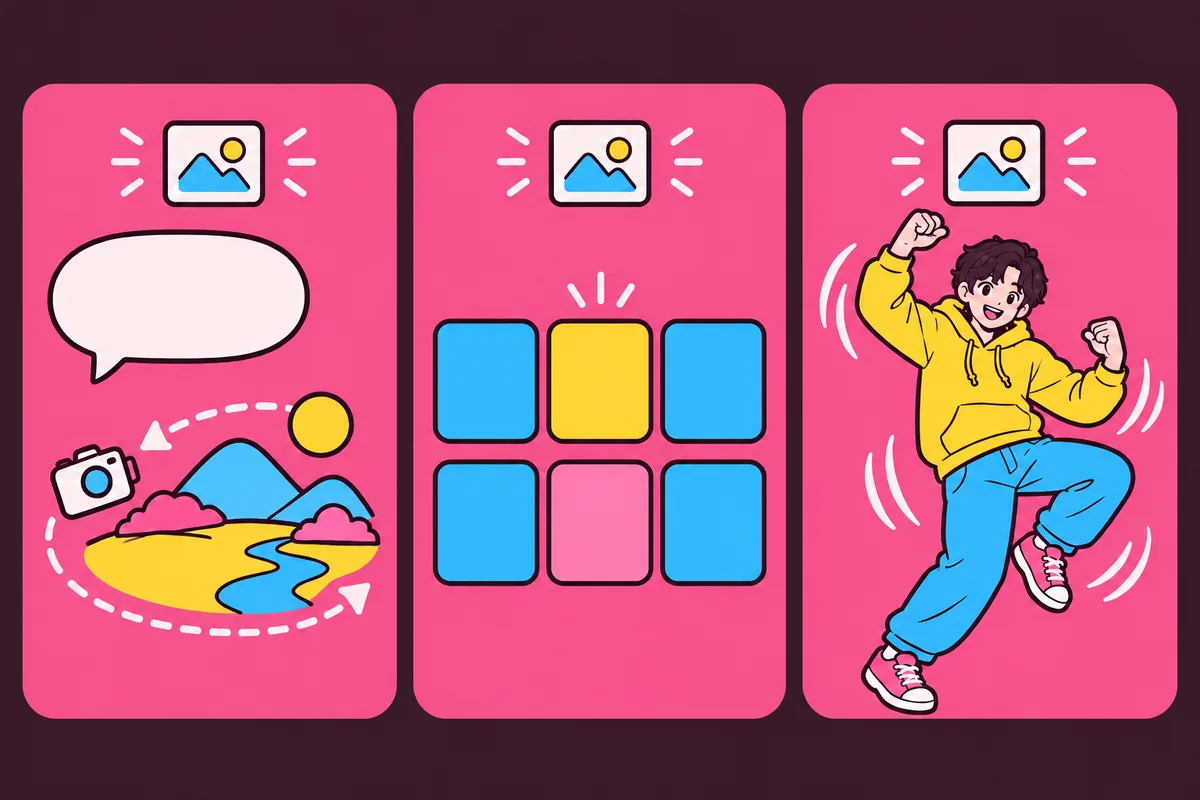
Three kinds of photo animation tool
Prompt-based image to video AI. You upload a photo and describe what should happen, such as "the camera slowly pushes in as the wind moves her hair". Kling, Runway and Luma work this way. These give you the most freedom, and they suit scenery, products and cinematic shots. They also take the most trial and error, because the result depends on your prompt.
Face and old photo animation. These tools focus on bringing a portrait to life with blinks, nods and smiles. MyHeritage's Deep Nostalgia is the well-known example, built to animate faces in still family photos. They are simple to use and a natural fit for old photos, but they are not made for full-body movement.
Preset motion tools. You pick a specific movement and the tool applies it. AI Dance Generator is one of these: it moves the person in your photo through a real dance routine, so nobody has to write a prompt. It only does dance, though. It will not animate a landscape or your grandparents' wedding portrait, and there is no free tier to try it on.
Which one to choose
- A landscape, product or scene: prompt-based image to video AI.
- An old family portrait: face animation.
- A person doing a particular dance: a dance tool. Try how to make an AI dance video.
- Your cat dancing: the AI cat dance page has styles made for cats.
- Something specific nobody has a preset for: prompt-based tools, with some patience.
How to get a better result from any tool
Most of this applies whichever kind you choose.
- Start with a sharp, well-lit photo. Blur and noise get worse once the image moves.
- Keep the whole subject in frame. The AI has to invent anything that is cropped, and that is usually where things look wrong.
- Choose a simple background. Busy backgrounds tend to warp as the subject moves.
- Ask for one thing at a time. With prompt tools, one clear action and one camera move work better than a paragraph of ideas.
- Describe motion, not the picture. The tool can already see the photo. Tell it what changes.
- Make a few versions. Results vary, so plan on more than one try, and check the cost of a retry.
What to check before you pay
- Free tier: look for limits, watermarks and short exports. We go through this in is there a free AI dance generator?, and the same checks apply here.
- Length and resolution: check the maximum clip length and the output size for the plan you would actually buy.
- Credits: many tools charge per second, and higher quality often costs more.
- Commercial use: if the video is for a business, read the terms for your plan.
- Photo handling: check how long uploads are kept and whether they are used for training.
Features and prices in this category change often, so trust the official pricing page over any comparison article.
Animating photos of other people
Get permission before animating a photo of someone else and sharing it. A moving image can suggest a person did something they never did, which is a bigger step than posting a still. Be especially careful with photos of children and of people who cannot be asked. Platforms have rules here as well: TikTok's community guidelines require a label on realistic AI-generated content.
This is general guidance, not legal advice.